How do I get access to ScienceDirect from anywhere?

Last updated on March 02, 2026

How do I get access to ScienceDirect from anywhere?

Last updated on March 02, 2026

We're actively working with organizations to support access from anywhere, so you can continue to do research and study even when your campus or workplace is closed, or when you are on the move. To find out if your company or campus library already supports remote access, check with your librarian or administrator or view your organization's website.

Note for librarians or administrators: If you would like to enable remote access for ScienceDirect or any other Elsevier product, complete this request form and you will be contacted by our dedicated customer support team shortly.

Am I already accessing through an organization?
“A screenshot of a the top-right of the ScienceDirect interface featuring navigation options including ‘Journals & Books,’ ‘Help,’ a search icon, a profile icon for ‘Olga V,’ and an outlined box with partially visible text reading ‘Elsevier - Demonstration…’. which is an example of what the user views when signing in to ScienceDirect with their organizational account.

If ScienceDirect recognized your company or library network, you will see the name of your organization on the top right of any ScienceDirect page.
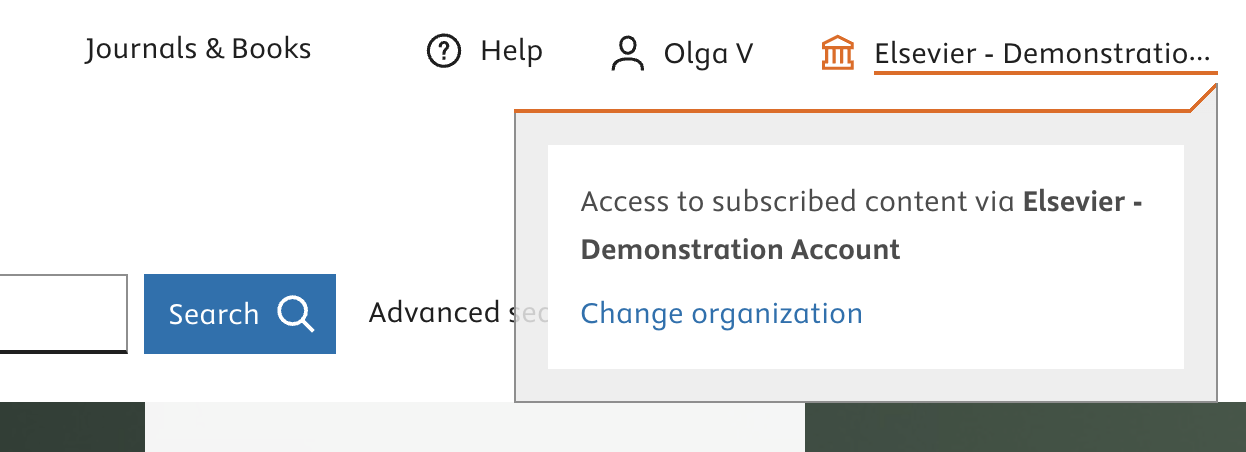
screenshot popup that appears when selecting the name of the institution in the top-right corner of any ScienceDirect page. It shows the full name of the institution, information about the subscription and a link reading 'Change access'

Select the name in the header to view the full name or to change organization.

How do I access through another organization?

You might want to change your organization, for instance if you changed jobs. You can find this option on the following pages:

On all pages

screenshot institutional sign in option at the top-right corner of any ScienceDirect page

Select the name in the header, and select 'Change organization'.

On the Article page

screenshot of a horizontal sticky banner on the article page, containing the following buttons from left to right: Sign in to your organization, Purchase PDF, Other access options. Select other access options, and choose Change organization from the drop-down to change your organization.

Select the 'Other access options' dropdown-menu, and choose 'Change organization'.

How do I get access through an organization from outside their network?

ScienceDirect offers two different paths to start this process:

  • Select the blue access button at the top of any Article page.

OR

  • Select ‘Sign in’ at the top-right of any page on ScienceDirect and follow the steps on the screen.
How do I know if my organization offers (remote) access to ScienceDirect?

Follow these steps to find out if your organization offers remote access to ScienceDirect:

  1. Visit our Institutional access page.
    • Please note: It is possible that the system recognizes a previous sign in from your browser. If you wish to gain access via another institution, select ‘Try another way’ when the option is presented to you on the screen.
  2. Enter your institutional email address or the name of your organization, university or company.
  3. If your institution allows you to sign in with your institutional credentials you will see one of the following screens:
    • The ‘Access through your institution’ screen.
      screenshot sign in via institution
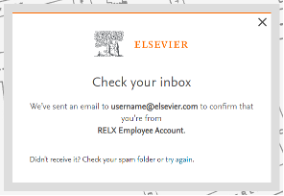
    • Some institutions prefer validation through email links. In this case we will send a validation link to your work email address.
      screenshot validation link message
  4. If your organization has not set up remote access to ScienceDirect yet, ask your Librarian or Administrator about the options.
How do I activate remote access with my registration ID?

Visit the ScienceDirect ID registration page and type in the registration ID and passcode you received from your librarian or administrator.

Once you have successfully registered, you will be asked to sign in or create your personal Elsevier account using your corporate or institutional email address. Learn more about the benefits of an Elsevier account.

Was this answer helpful?

Thank you for your feedback, it will help us serve you better.
If you require assistance, please scroll down and use one of the contact options to get in touch.

For further assistance:

Opens new window Download file Opens an image